SASSA SRD Identity Verification: Every Screen From "Verify Identity" to Done
When your SRD status stops on a "Verify Identity" button, your R370 is on hold until you pass a live selfie check. We walked the whole flow on a flagged file and captured every screen, including the error that locked us out.
Reviewed by Neo Hlapho, Editor and Researcher (Certificate in Journalism, UCT · Certificate in Governance, Rosebank College)
How we documented thisFirst-hand walkthrough, September 2026 payment cycle
Screens from a real flagged file
The screenshots on this page are our own captures from an SRD file that the portal flagged for identity verification during the September 2026 cycle. They are not mock-ups, and we have quoted SASSA's wording exactly, including its own spelling of "identify verification process" on the request screen. We also reached the attempt limit while re-testing, so the "Reverification Not Allowed" pop-up further down is the real error, word for word.
Faces and personal details have been cropped out of every screenshot. What you see is the SASSA interface only.
Identity verification is SASSA's e-KYC (know-your-customer) check on the SRD system, branded SC19 where it appears on the portal. It exists to confirm one thing: that the living person holding the phone is the same person the ID number belongs to. It does that with a single live selfie, matched against your Home Affairs record, and it runs entirely inside srd.sassa.gov.za at no cost.
The important thing to understand up front is what it is not. It is not the means test, and it is not an approval. Passing it does not release your R370 on its own. It only clears the identity question so the rest of your monthly verification can carry on. Think of it as a locked gate on your file: until you pass it, nothing behind it moves.
When SASSA asks you to verify your identity
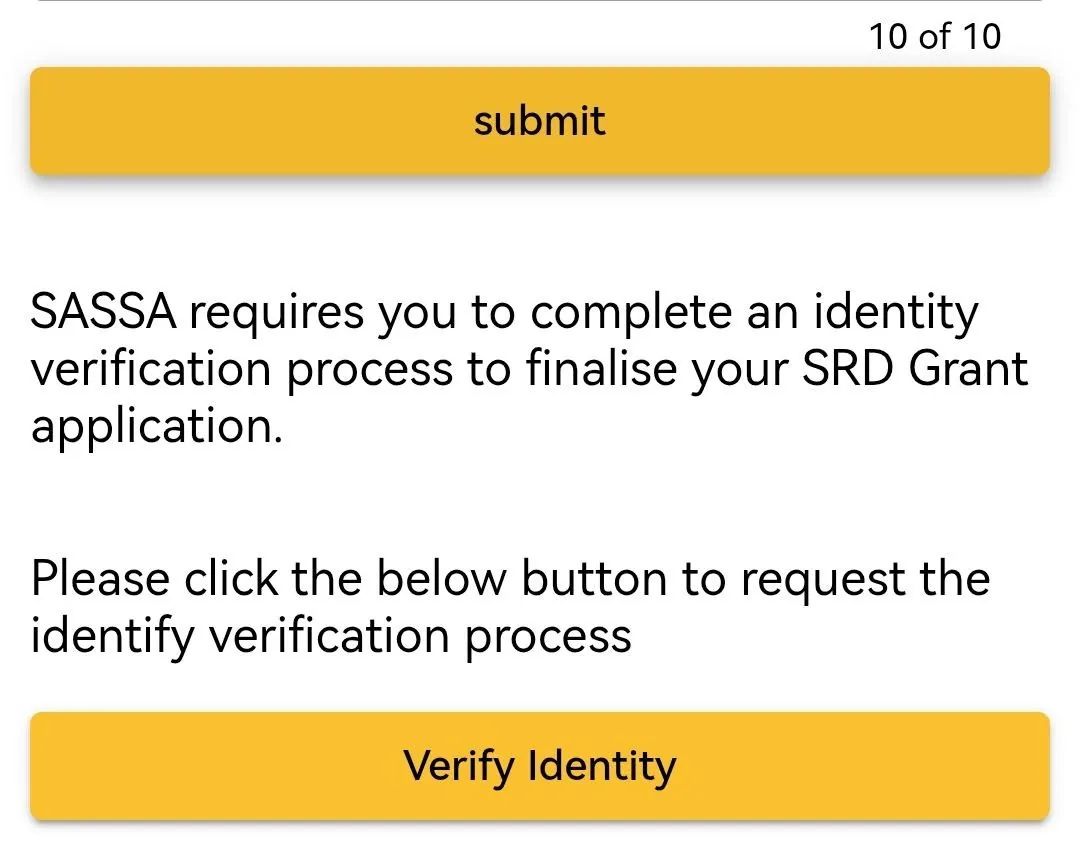
Most applicants never see this screen. It is triggered only when SASSA has a reason to double-check who you are, most often a fraud flag on your ID, a "Referred" outcome, a mismatch against Home Affairs, or a recent SIM swap that broke the link between your cellphone number and your ID. When it is triggered, your status check does not end on a normal result. It ends on a step marked "10 of 10" with a yellow Verify Identity button, and the grant is parked there until you act.
The trigger screen: the check finishes on "Verify Identity" rather than an outcome.
"SASSA requires you to complete an identity verification process to finalise your SRD Grant application. Please click the below button to request the identify verification process."Exact text on the Verify Identity screen
That "identify" is SASSA's own typo, not ours. We point it out because scam pages tend to copy the real screen imperfectly, so knowing the genuine wording helps you tell them apart. Tapping the button does not run the check straight away. It only puts in the request, and what follows is a short run of screens worth walking through one at a time.
Why SASSA runs the identity verification
The SRD grant has been a magnet for identity fraud since it launched: stolen ID numbers, batches of applications farmed by syndicates, and files where the person collecting the money is not the person the ID belongs to. The live selfie exists because it closes the gap those schemes rely on.
Easy to copy
An ID number, or a photo of an ID document. Both can be stolen, bought and reused across many applications.
vs
Hard to fake at scale
A live face on camera, matched in real time against the Home Affairs population register.
What catches most people out is that they were never committing fraud, yet the file still gets pulled. The check keys off change, and ordinary life is full of change that looks, to an automated system, exactly like a file being taken over. Three everyday ones cover most of the flags readers send us, alongside outright fraud-flag reviews.
Most common
You changed your phone or SIM
Your number is tied to your ID on SASSA's records, and every OTP and payment SMS runs through it. A SIM swap, a ported number or a new phone breaks that link, and a new number speaking for an old ID looks like a hijacked file. In the cases readers forward us, this is the most common reason a long-approved file suddenly lands on "Verify Identity".
Redirecting the grant to a new account is the first move someone hijacking a file would make, so a banking change is treated as high risk. Moving off a Postbank card, switching banks or changing where the R370 is paid can bring up the check before the new account is trusted. It is not a penalty for switching.
The selfie is only as clean as the record it is matched against. If your name, ID number or status on the population register is out of date, wrong or flagged, the match has nothing solid to land on and the file is referred for a closer look, which is why a "Referred" outcome so often comes with an identity check attached.
A checkpoint, not an accusation. If your file was pulled for any of these reasons, the selfie is simply the step that proves a real, living person stands behind the ID number before another cent is released. Once it clears, your file rejoins the normal monthly cycle where it left off.
How to complete the SASSA SC19 selfie check, screen by screen
There are three moves: request the check, open the selfie link SASSA sends you, and take the selfie. Each one has its own screen.
1. Request identity verification
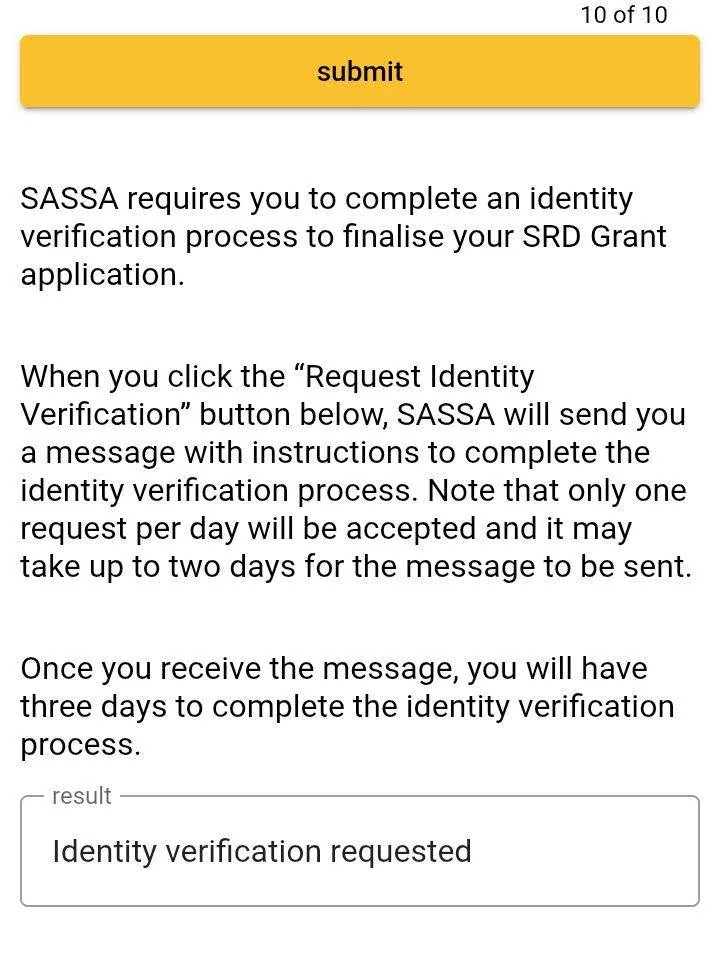
When you tap "Verify Identity", the screen expands with the rules of the process and drops a short confirmation into a "result" box. This is the part most people miss, because it sets the clock you are working against.
The confirmation, with the "Identity verification requested" result box at the bottom.
"When you click the 'Request Identity Verification' button below, SASSA will send you a message with instructions to complete the identity verification process. Note that only one request per day will be accepted and it may take up to two days for the message to be sent. Once you receive the message, you will have three days to complete the identity verification process."Exact text on the request screen
Three numbers on this screen decide how your week goes:
One request per day. Tapping the button again will not speed anything up. A second request in the same day is ignored, so request once and wait.
Up to two days for the message. The link does not always arrive by SMS instantly. Give it the full window before assuming something is broken.
Three days to complete. Once the message lands, the selfie link is time-limited. Do it while you have signal, light and a few quiet minutes, not at the last hour.
If you request late in the day and nothing arrives, do not panic-tap the button the next morning before checking your messages. Requesting again resets nothing and can leave you thinking the link never came when it is already sitting in your SMS inbox.
2. Open the SC19 selfie link
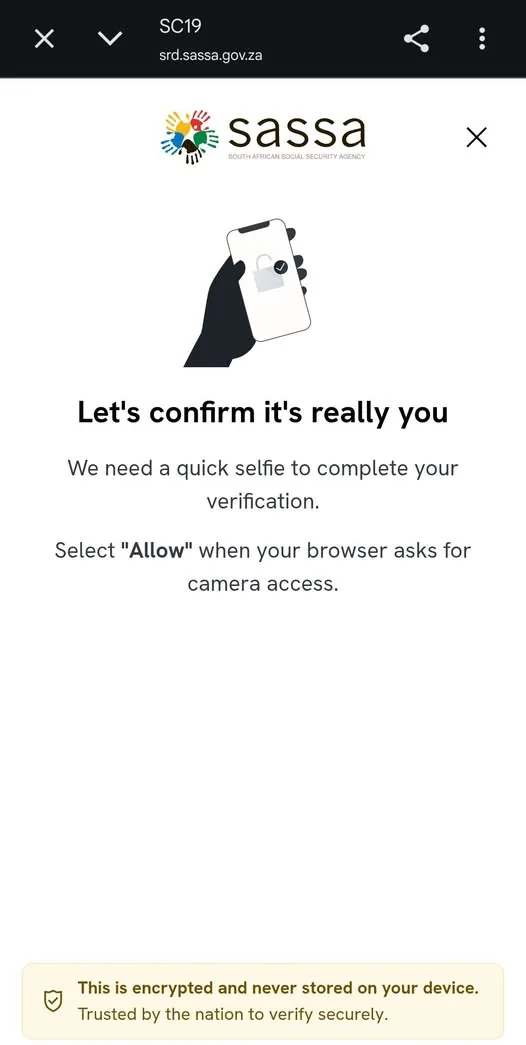
The message SASSA sends contains a link. Opened, it loads a page headed SC19 on the srd.sassa.gov.za domain. This is the real facial-recognition step, and the domain in the address bar is the single most important thing to check before you do anything else.
The SC19 consent screen. Note the srd.sassa.gov.za address and the "SC19" label at the top.
"Let's confirm it's really you. We need a quick selfie to complete your verification. Select 'Allow' when your browser asks for camera access." Then, at the foot of the page: "This is encrypted and never stored on your device. Trusted by the nation to verify securely."Exact text on the SC19 selfie screen
When you tap through, your browser asks for camera permission. Choosing "Allow" is what lets the page open a live camera view, which is deliberate: the check needs a live face, not an uploaded photo. If you accidentally block the camera, the check cannot run, so close the page, reopen the link and allow access when prompted.
3. Take the live selfie
The capture itself is quick. The page shows a live view of your face with a light mesh overlay, and when it has a clear read it locks in with a green tick. There is no upload button and no file picker. Hold steady, face a plain wall, and let the good light do the work. When it accepts the selfie, it swaps to a plain success message.
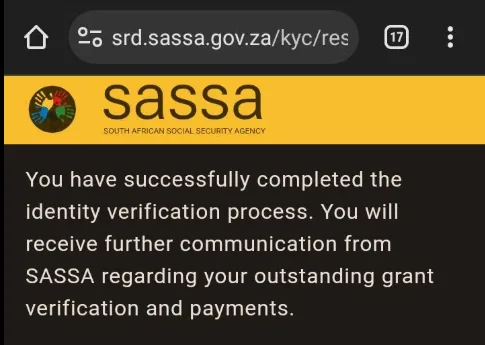
The success screen, still on srd.sassa.gov.za/kyc. The face has been cropped out.
"You have successfully completed the identity verification process. You will receive further communication from SASSA regarding your outstanding grant verification and payments."Exact text on the success screen
Notice what this screen does not say: it does not promise a payment date, and it does not approve your grant. It confirms the identity check is done and hands you back to the normal verification queue. In practice, readers who forward us their screens report waiting roughly two to three weeks after this point before an approved date appears, and we treat that as a community pattern rather than an official service level, because SASSA does not publish one.
SASSA e-KYC links: check status, reverify or referred
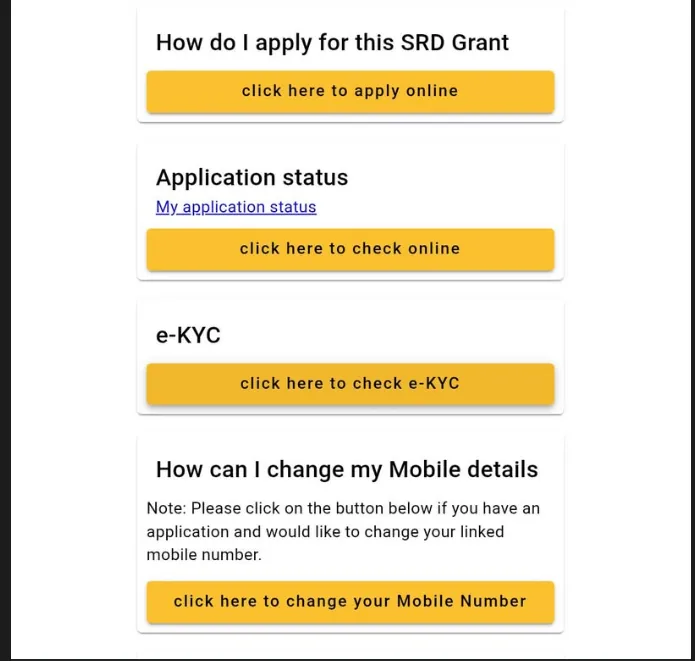
Depending on why your file was flagged, your SRD status page may show a small menu of e-KYC options rather than a single button. There are three, and each one has its own page on the official srd.sassa.gov.za domain. Knowing which is which saves you from starting the wrong process.
The e-KYC card as it appears in the SRD status menu (Facebook header cropped out).
For files showing a "Referred" outcome, where the case was pulled aside for manual review rather than declined.
Not sure whether you even need to verify? Open the status page first. It tells you whether a check is outstanding before you commit to a reverification you may not need, and every one of these three links sits on srd.sassa.gov.za, so the domain doubles as your scam check.
"Identity verification failed": why it happens and how to fix it
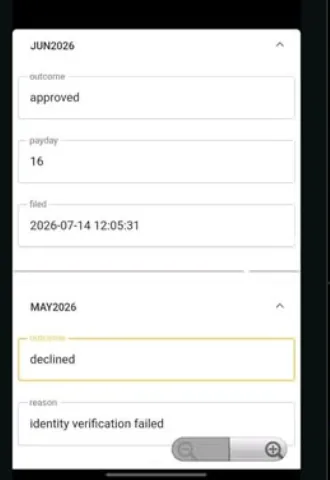
A failed check does not vanish quietly. It lands on your status file as a declined month with the reason spelled out, and it keeps the grant blocked until the underlying data is fixed. The status card below, forwarded by a reader, shows exactly how it reads: one month declined for "identity verification failed", the next month approved once it was sorted.
A real status file: "declined, reason: identity verification failed", then "approved" the next month.
From the cases we see, a failed result almost always traces back to one of a few causes. Match yours before you retry through the reverification page, because retrying without fixing the cause just burns an attempt.
Likely cause
What to do about it
Recent SIM swap
A new SIM can break the link between your cellphone number and your ID on SASSA's records. Confirm the number on your SRD profile is the one tied to your ID, then request verification again.
Name or ID mismatch at Home Affairs
If your details on the population register are wrong or out of date, the selfie has nothing clean to match against. Correct them at Home Affairs first, then retry.
Poor-quality selfie
Bad light, a busy background or a partly covered face can fail the read. Face a plain wall in good daylight, remove hats and glasses, and hold the phone steady.
Genuine identity flag
If someone has misused your ID, the check may keep failing. This one cannot be fixed from your phone. Take your green barcoded ID to a SASSA branch.
"Reverification Not Allowed": the SASSA attempt limit and what to do
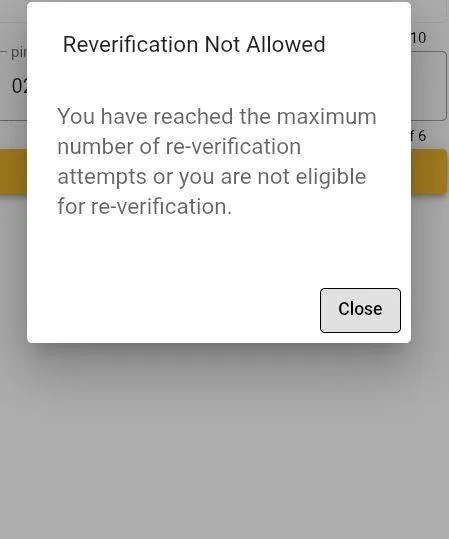
This is the wall we hit ourselves. The online check does not let you retry forever. Once you have used your attempts, or if your file is not eligible for an online re-check at all, the reverification page produces a blunt pop-up.
The attempt-limit pop-up we triggered while re-testing.
"Reverification Not Allowed. You have reached the maximum number of re-verification attempts or you are not eligible for re-verification."Exact text on the reverification pop-up
When you see this, the online route is closed for that file. There is no button that reopens it. Take your green barcoded ID (and your ID book if you have it) to a SASSA branch and ask to complete the identity check in person. This is also why you should never waste attempts retrying a failed selfie without first fixing the cause.
How long SASSA identity verification takes
Put the screens together and the realistic timeline looks like this. It is built from the wording on the screens plus what readers consistently report, not from a published SASSA turnaround, because there is not one.
Day 0: You tap "Verify Identity" and request the check. The result box confirms "Identity verification requested".
Day 0 to 2: The message with your SC19 selfie link arrives. The screen allows up to two days.
Within 3 days of the message: You open the link, allow the camera and complete the live selfie. The success screen appears at once.
Roughly 2 to 3 weeks after: Readers commonly report an approved date appearing on the file. Keep checking your SRD status on the first working day of each month.
How to spot fake SASSA verification links
Identity verification is a favourite hook for scammers, because a message that says "verify now or lose your grant" pushes people to act before they think. The real process gives you one hard test to lean on: the domain.
The genuine check only ever runs on srd.sassa.gov.za, and its e-KYC pages sit under srd.sassa.gov.za/sc19/ekyc/. If a verification link points anywhere else, it is fake. Not sure about a link you were sent? Paste it into our Website Legit Checker before you tap it.
Real SASSA verification
Scam version
Runs on srd.sassa.gov.za, header reads "SC19".
Runs on a look-alike domain, a shortened link, or a Facebook or WhatsApp page.
Asks only for a live selfie and camera access.
Asks for your card number, banking PIN, an OTP or a "small fee".
Free, every screen, every time.
Offers to "fix" or "fast-track" your verification for payment.
Started from your own status check or the message SASSA sends after you request it.
Arrives unprompted, often with urgent wording and a countdown.
If you ever want to confirm what SASSA actually requires, go direct: the SRD portal at srd.sassa.gov.za, the toll-free helpline on 0800 60 10 11, or the SRD WhatsApp line on 082 601 0111. No one from SASSA will phone to ask for a verification fee.
How long does SASSA SRD identity verification take?
The request itself is instant, but the screen warns that only one request per day is accepted and the message with your selfie link can take up to two days to arrive. Once it arrives you have three days to complete the selfie. After you finish, the success screen says SASSA will send further communication about the outstanding verification and payment, and readers commonly report a wait of two to three weeks before an approved date shows.
Where can I check my identity verification status?
SC19 is the header on SASSA's own facial-recognition page. The legitimate link always sits on the srd.sassa.gov.za domain and asks for camera access to take a live selfie, with an on-screen note that the image is encrypted and not stored on your device. If a link asking you to verify your identity is on any other domain, or asks for a fee, a card number or an OTP, it is a scam. Only start verification from srd.sassa.gov.za or the message SASSA sends after you request it.
What does "Reverification Not Allowed" mean?
It is the pop-up that appears once you have used up your identity verification attempts, or if your file is not eligible to be re-verified online. The exact wording is: "You have reached the maximum number of re-verification attempts or you are not eligible for re-verification." When you see it, the online route is closed for now. Take your green barcoded ID to a SASSA branch to have the identity check done in person.
Why did my SRD status say "identity verification failed"?
A failed result means the selfie or ID data did not match the Home Affairs record tied to your ID number. The most common triggers are a recent SIM swap that broke the link between your number and your ID, a name or ID-number mismatch against the population register, or a poor-quality selfie taken in bad light. Fix the underlying data first, for example correct your details at Home Affairs, then request verification again if the portal still allows it.
Do I have to pay anyone to complete SASSA identity verification?
No. Every screen in the real SASSA flow is free and runs inside srd.sassa.gov.za. SASSA never asks for a fee, a bank card, a PIN or an OTP to verify your identity. Anyone charging you to pass verification, or offering to do it for you, is running a scam.
Related SASSA Status Check Guides
Every other SRD status problem, from outcomes and appeals to banking and payment delays.